

ArcGIS Pro Access and Installation Guide
ArcGIS is a powerful geographic information system (GIS) developed by Esri. It is software used for creating, managing, analyzing, and mapping all types of geographic data. It enables users to explore the world around them by connecting data to geographic locations, transforming that raw data into actionable insights through maps and 3d models. ArcGIS offers tools for both desktop and web platforms, allowing users to perform complex spatial analysis, manage large datasets, and share their fundings with interactive maps and applications. This software is widely used across multiple industries, including urban planning, environmental conservation, transportation, and emergency management, helping professionals make informed decisions based on spatial information and trends. Please click here for more information.
Platforms

Eligibility
- Students: Students can request access to ArcGIS Pro & all available add-ons
- Faculty: Faculty can request access to ArcGIS Pro & all available add-ons
- Staff: Staff can also request access to ArcGIS Pro & all available add-ons.
ArcGIS Pro & Extensions
Faculty, Staff and Students have access to ArcGIS Pro and the following Add-ons:
|
|
|
- Windows
Setup/Installation Instructions
-
- All users with an NMSU email automatically have an ArcGIS account, but access to the licensure has to be requested.
- Click here to request access to ArcGIS
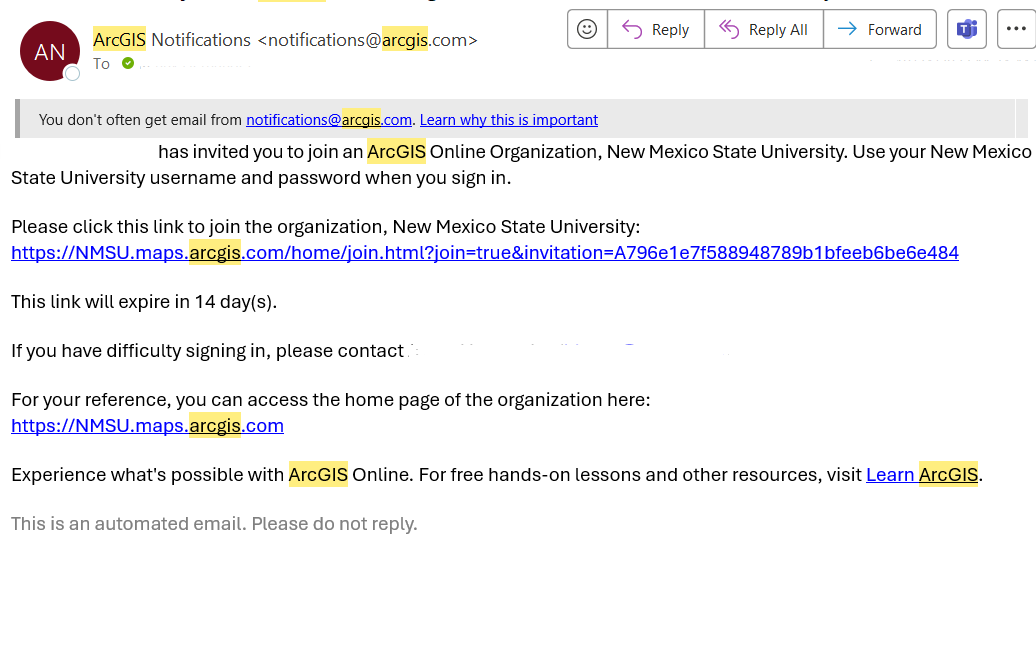
- Once the request has been made, please expect an email from ArcGIS to arrive, inviting you to the NMSU organization. Click on the link provided.
- You should now be taken to nmsu.maps.arcgis.com, where you will be able to access ArcGIS.
-
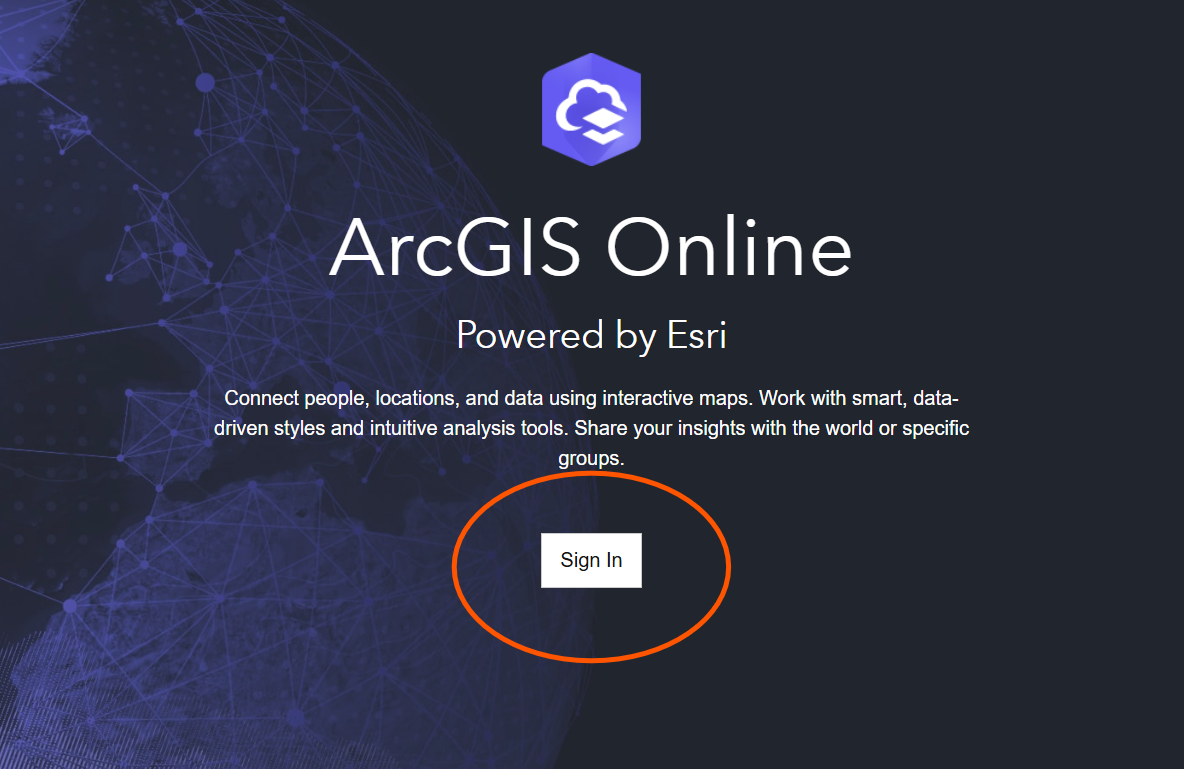
- Login here: ArcGIS Login
-
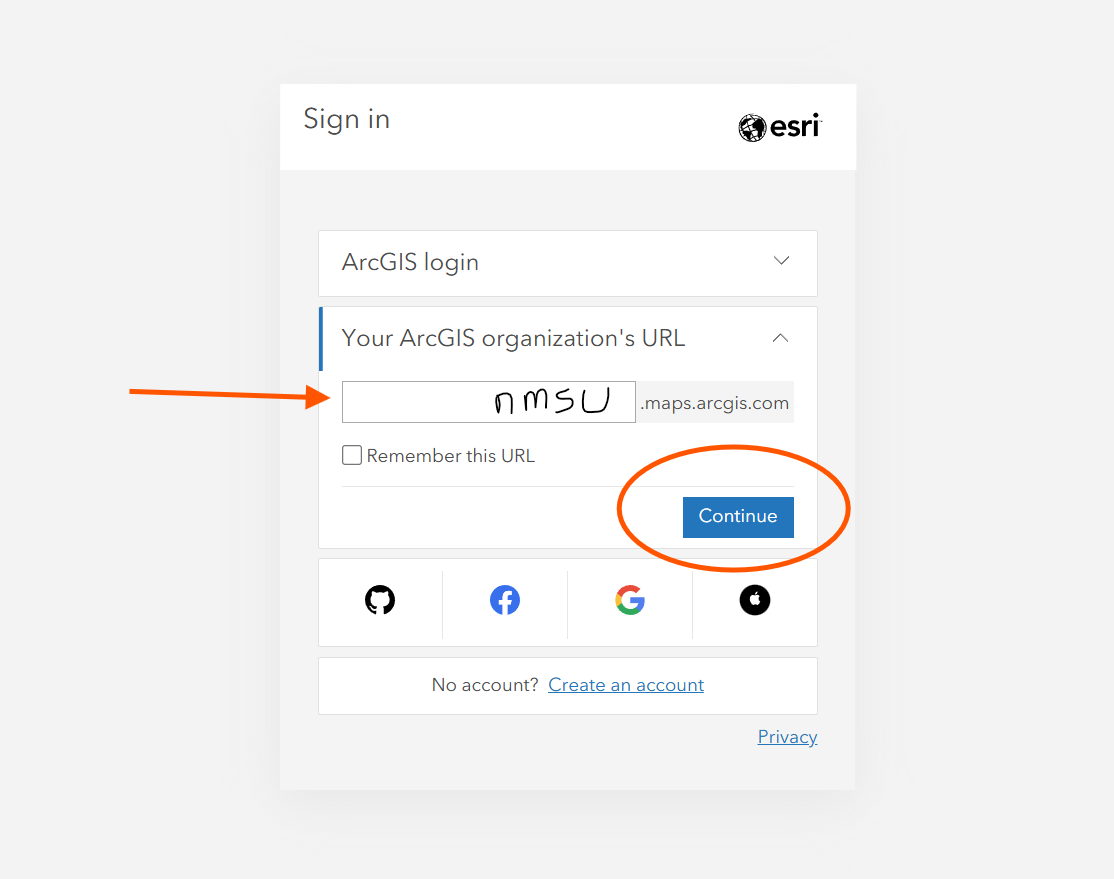
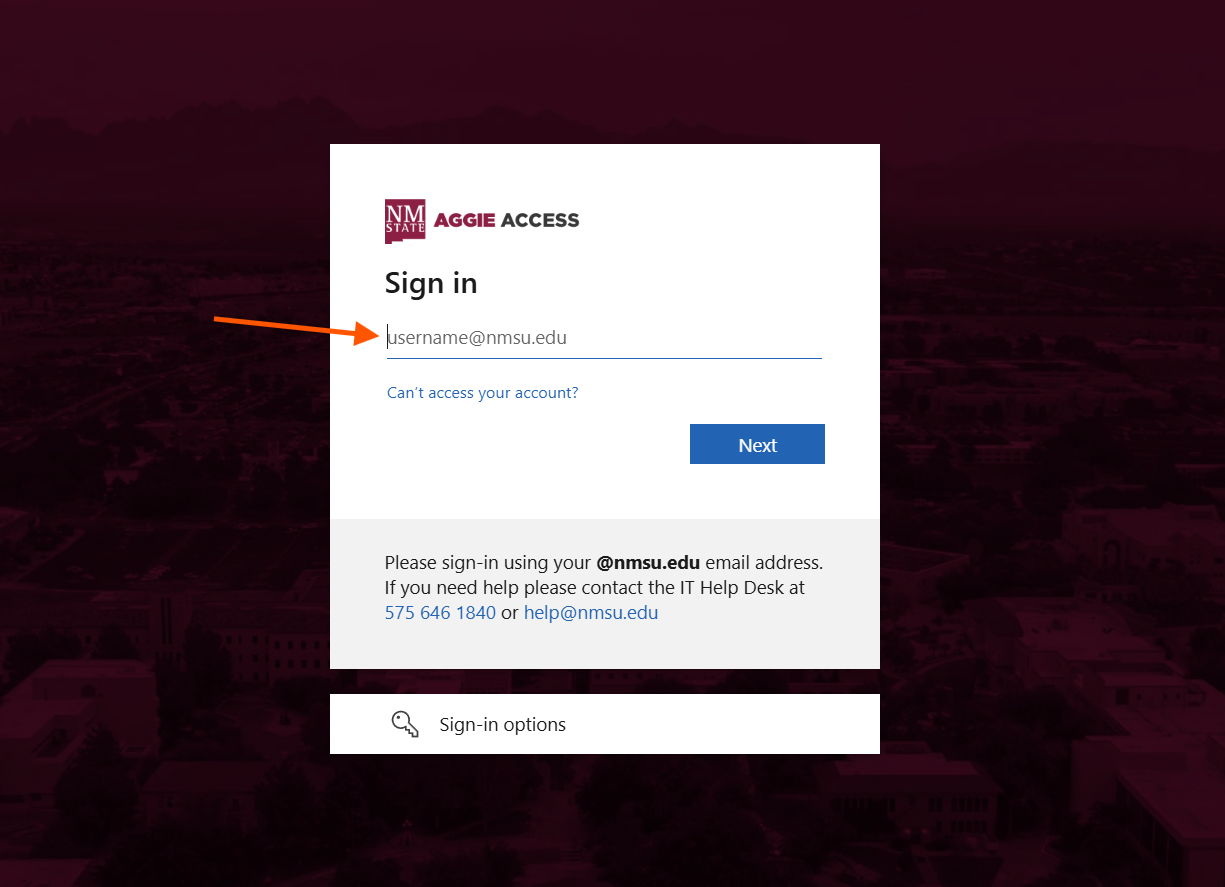
- In the login menu, please select 'Your ArcGIS organization's URL'. The URL should look like this: nmsu.maps.arcgis.com. Press continue.
-
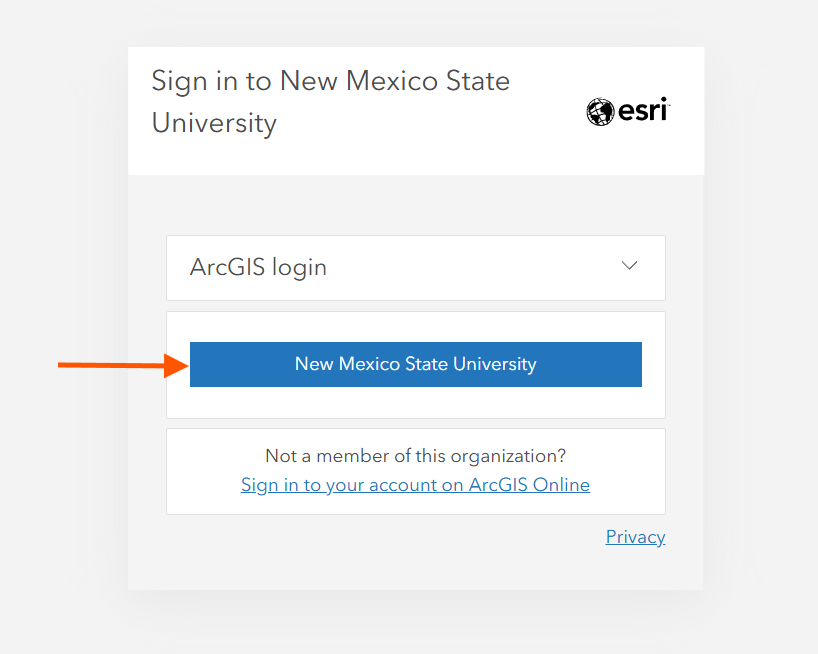
- Then click on the blue 'New Mexico State University' button. This should automatically log you in, but if not you'll be prompted to enter your NMSU credentials at the SSO screen. You should then be logged in.
-
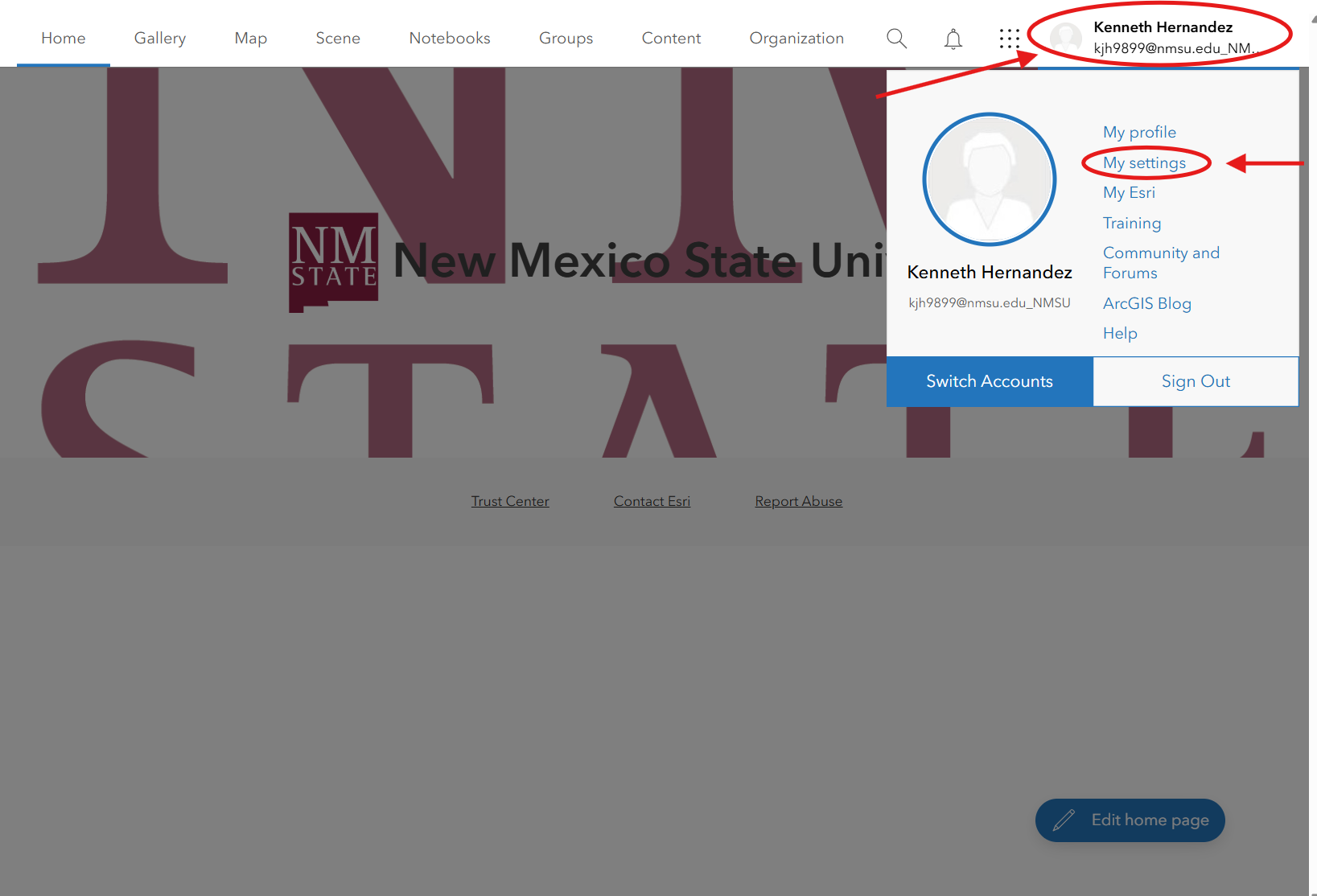
- On the home page of nmsu.maps.arcgis.com, click on your name at the top right of the window and select 'Settings'.
-
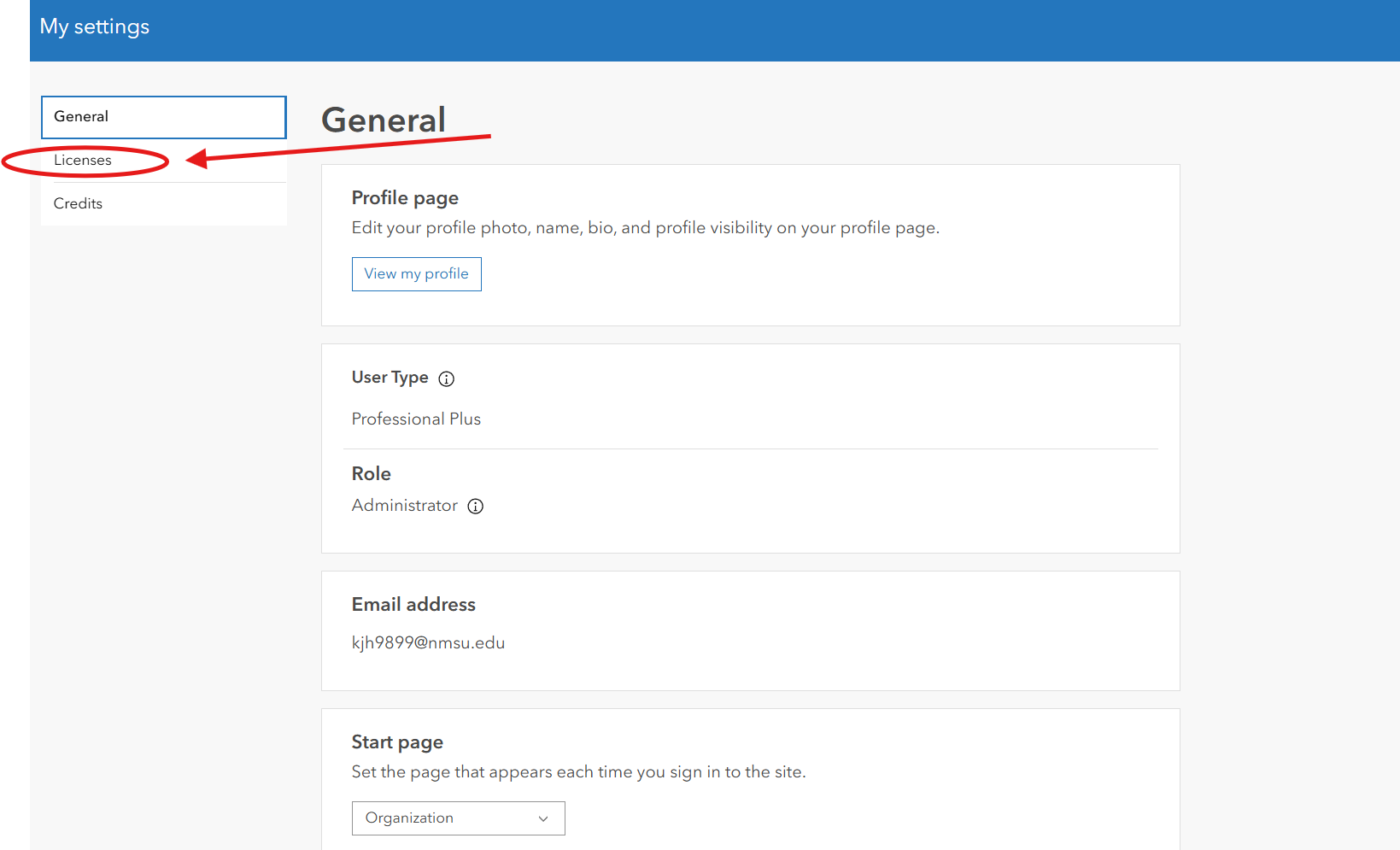
- At the Settings menu, select 'Licenses' to the left.
-
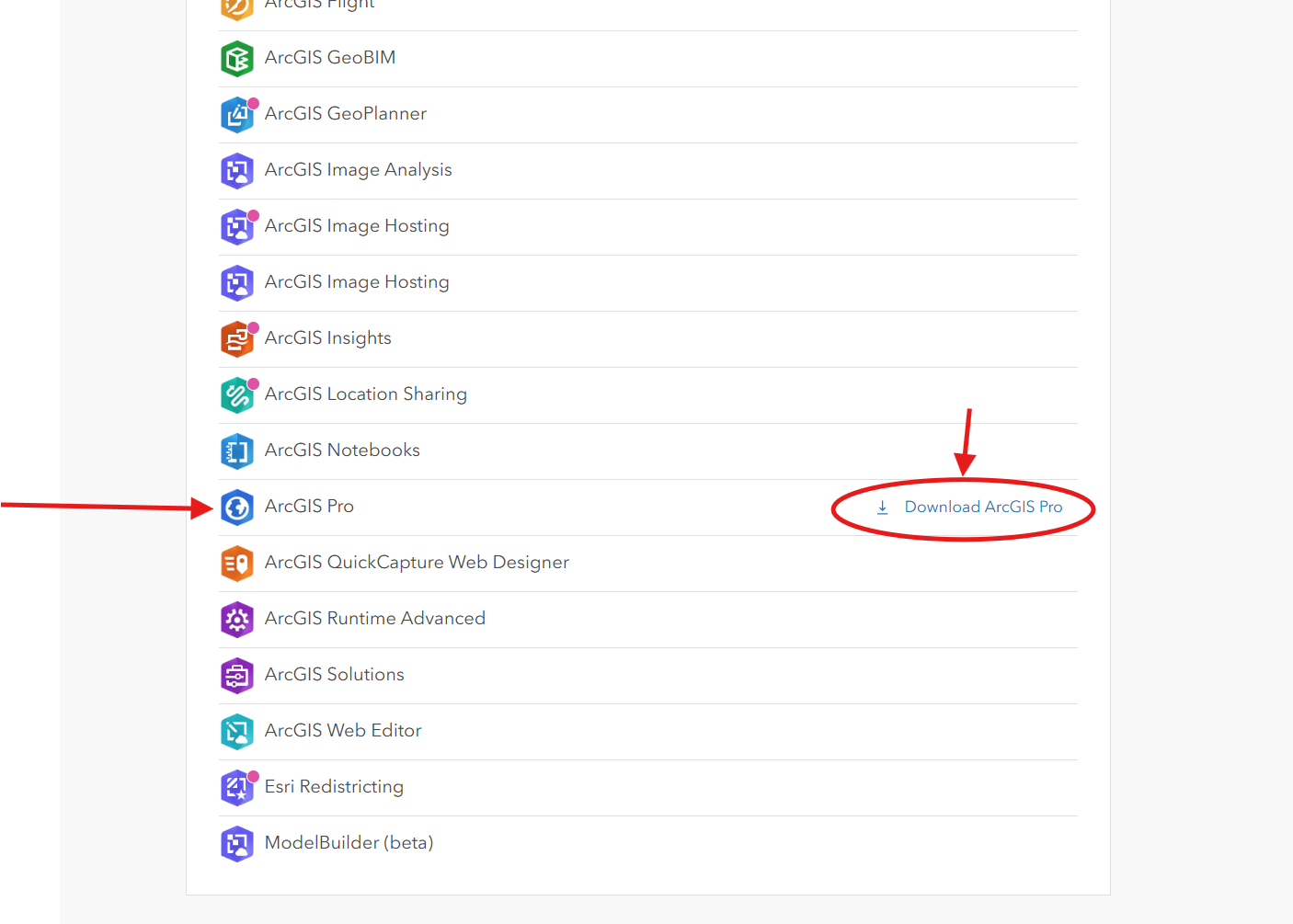
- You'll be taken to all the addons you have, scroll down and look for ArcGIS Pro. To the right of that, there should be a 'Download' button. Click it and you will be able to install ArcGIS Pro.